
Kick & bass
Hear Sub or Bass first to judge how kick and bass take turns. Then try a small-speaker check: is the bass line recognisable when its deepest notes are less present? Compare with the original before changing EQ.
TONE UTILITY / Monitoring perspectives & mix translation
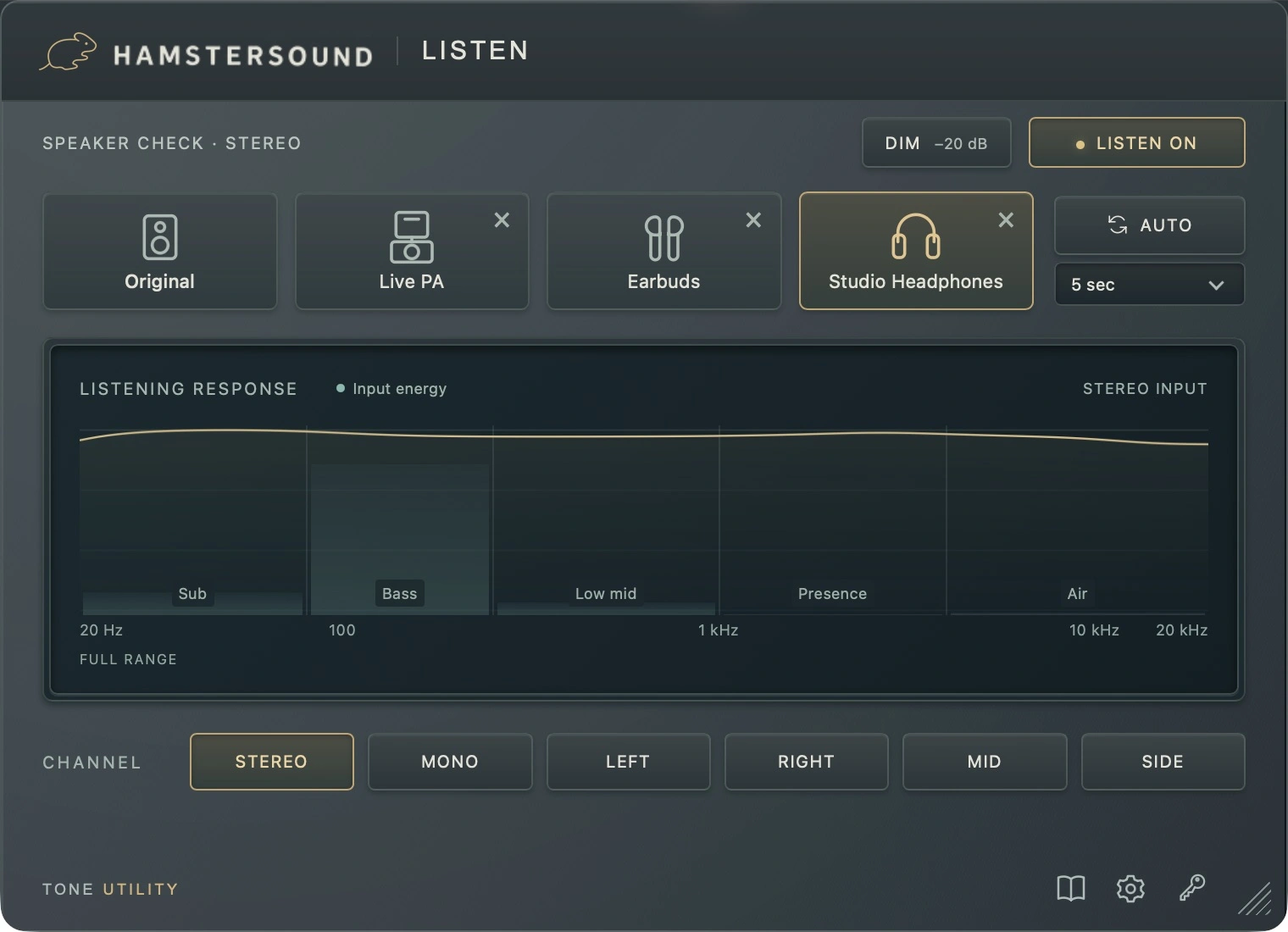
Compare three chosen speaker profiles with your original mix. Isolate a frequency region with one click and check stereo, mono or the sides. Hear whether the bass line stays recognisable, the vocal holds its place and the mix works from another perspective.
0 samples latency No iLok required
YOUR LISTENING SET
A small speaker asks something different of your mix than your studio monitors. Load Small Cube, Laptop and Car stereo beside Original. Click Add speaker to fill a card, then switch directly between your chosen perspectives.
Enable AUTO to cycle through Original and the loaded cards every 3, 5, 8 or 12 seconds. Empty cards are skipped. Let the track run and listen for the melody, groove and balance to remain recognisable.
Choose from ten listening perspectives, including Live PA, Earbuds and Studio Headphones. Hear whether the vocal stays intelligible on earbuds, the bass line remains recognisable on a small speaker and the kick holds its place in a PA perspective. These are designed tonal perspectives, not exact emulations of physical speakers, headphones or rooms.

FREQUENCIES & ENERGY
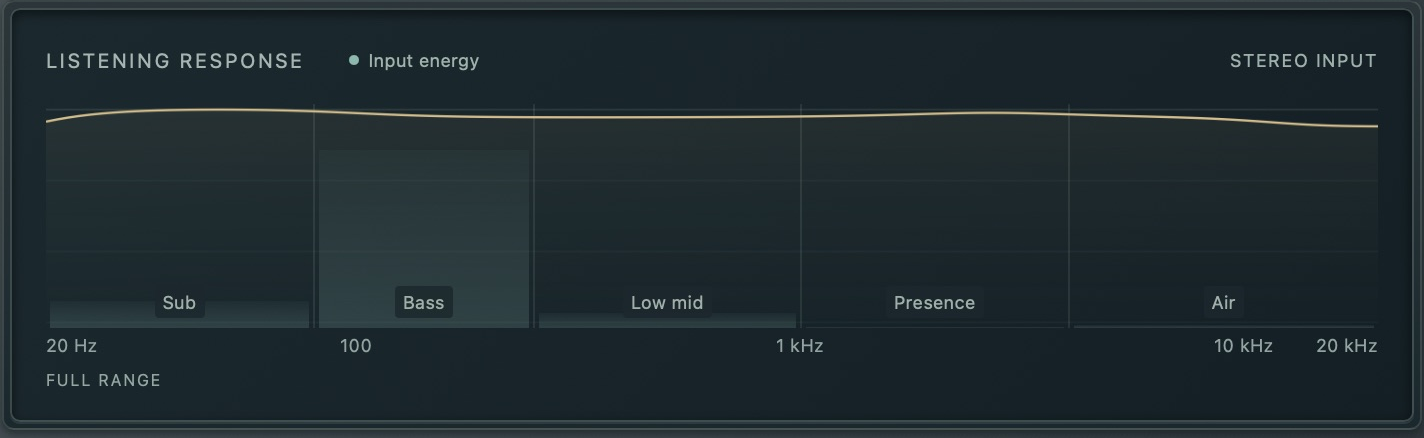
Click Bass to hear how kick and bass carry the low end together. Choose Presence to listen to the space shared by vocals, guitar and horns. Sub, Low mid and Air provide the other regions. Click the selected region again to return to Full range.
The amber line shows the tonal balance of your chosen perspective. The green fill follows the energy in the original input, independently of that perspective. See where your kick, bass and midrange carry their energy while hearing what a different listening mode does to them.
Switch to Original without losing your frequency region or channel. Compare the same part of the mix each time, making a different tonal balance easier to judge.
STEREO, MONO & MID/SIDE
Check a wide guitar part or piano layer in Mono. Hear Mid for the centre and Side for the sides and reverb tails. Left plays through the physical left speaker only, Right through the physical right speaker only: useful for checking either side of your stereo image. All six listening modes have their own button.
Mono and Mid are separate listening modes. Side plays the difference between left and right. With a mono input, LISTEN disables channel modes that do not apply. You hear parts of the stereo image; individual instruments are not isolated from the mix.
COMPARE CALMLY
A louder comparison can seem more appealing. Automatic level matching helps reduce larger level differences between listening modes. Find it under the settings icon together with the shared Output trim. DIM lowers the listening volume directly by 20 dB.
The compensation moves slowly and has limits. It is not an exact perceived-loudness match or a true-peak limiter. Cards share the same settings, so a comparison does not quietly start with a different trim.
IN YOUR MUSIC
Hear Sub or Bass first to judge how kick and bass take turns. Then try a small-speaker check: is the bass line recognisable when its deepest notes are less present? Compare with the original before changing EQ.
Presence helps you hear the region where these parts can compete. Return to the original and decide within the full mix which part needs room.
Compare Stereo and Mono to hear what remains of the width. Hear Side for the sides and reverb tails. Discover which details provide width and which need to hold the centre.
Use a midrange or speaker check to hear whether the horn melody stays clear among guitars and keys. Return to the original regularly so one detail does not outweigh the whole band.
IN YOUR MONITOR CHAIN
Use LISTEN in your monitor chain. Choose a complete vocal phrase, a bass pattern or a chorus with the full band and compare without adjusting the mix in between. Then address the balance that keeps drawing your attention across perspectives.
The monitoring filters deliberately change the signal. Switch LISTEN off before exporting your original mix. Resize the interface with the corner handle; find the illustrated guide under the book icon in the plugin.
LISTEN / FAQ
About its sound, controls and the 14-day free demo.
Use LISTEN in your monitoring chain to assess your mix from different perspectives. Its listening filters deliberately change the signal. Disable LISTEN before exporting the original mix so the check does not become part of your final file.
No. The ten perspectives provide a different tonal balance, not an exact reproduction of a physical speaker model, headphones or a room. Fill three cards beside Original and check, for example, whether vocals read on earbuds or a bass line remains recognisable on a small speaker.
No. The frequency buttons let you assess a listening region such as Bass or Presence; they do not separate instruments. You can combine the chosen region with a speaker card, then return to Full range to judge your decision in the whole mix.
Mono helps you hear what remains of wide guitars, piano or reverb when the mix is summed. Mid lets you hear the centre; Side lets you hear the difference between left and right. They are separate listening modes. Left and Right play only through their respective speaker.
AUTO alternates Original and the loaded cards every 3, 5, 8 or 12 seconds, skipping empty cards. Automatic level compensation under the settings gear helps reduce larger differences, but it is not an exact perceived-loudness match. DIM lowers the listening volume by 20 dB.
Download LISTEN through your account and start the 14-day free demo from the plugin. The current download is for macOS 11 or later, on Intel and Apple Silicon, with AU and VST3.
14-day free demo