A useful level, before you mix.
LEVEL measures your source and applies the gain needed to move it towards a chosen RMS target. It can turn quiet recordings up and loud recordings down. Optional Ride follows level changes during playback.

- Insert LEVEL near the start of your track, before processors whose response depends on input level.
- Choose Voice/Instruments, Drums/Percussion or Custom.
- Play a representative part of the recording and click Analyze. The engine captures four seconds of playing audio. Progress appears below the profile buttons.
- When analysis finishes, LEVEL applies its fixed gain correction. Leave Ride off for this simple gain-staging workflow, or enable it to follow changing levels.
Transport stopped? Capture waits for playback. Silence within the captured passage counts, so avoid measuring a long gap. A new analysis retains the previous valid correction until the replacement is ready. Press Esc during analysis to cancel.
Average level and peaks are different.
- Voice / Instruments
- −18 dBFS RMS
- Drums / Percussion
- −25 dBFS RMS
- Custom
- Type −36 to −6 dBFS directly in Target. Enter commits; Esc restores the previous value. A decimal comma is accepted.
These profiles are practical starting points, not a guarantee of an ideal level for every source. Headroom can prevent the target being reached.
Measured holds the source RMS from the captured passage. Target is the desired average. Output below the knob is the live output RMS; it averages over a shorter interval and may move around the target. The Input and Output bars in LEVELVIEW show sample peaks.
RMS is unweighted and uses AES17 calibration: a full-scale sine reads 0 dBFS. Stereo analysis takes the higher channel RMS and applies one shared gain, preserving the left/right balance. A peak meter such as Pro Tools Classic does not have to show the same number as the RMS target. RMS is not LUFS or a guarantee of equal perceived loudness.
Keep the correction under your hand.
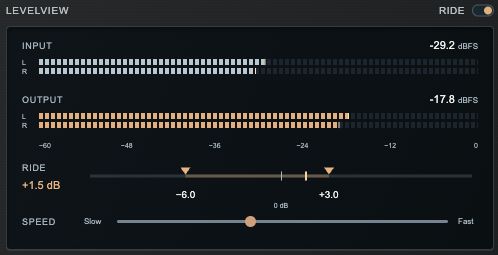
Ride off: the fixed correction from analysis stays in place. Ride on: LEVEL adds a smoothly changing correction as the signal level changes. Ride starts off in the audio plugin.
- Ride knob: controls the strength of the changing correction. Zero leaves the fixed analysis correction intact. Drag vertically; double-click restores 50%.
- Range arrows: drag the left and right arrows horizontally to set independent downward and upward limits, each from 0 to 12 dB. Double-click restores Down 6 dB / Up 3 dB.
- Speed: Slow follows broad changes; Fast reacts sooner to shorter changes. Start slowly and listen for unwanted level movement.
Ride changes dynamics deliberately. It does not add a console, EQ, saturation or compression character model. Below the Activity floor it stops chasing quiet material and gradually returns the extra correction towards zero; it never mutes the audio.
The finishing controls.
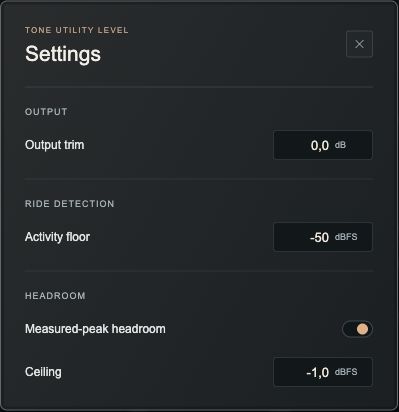
- Output trim
- A deliberate final offset from −12 to +12 dB. Ride does not automatically remove it.
- Activity floor
- The detector level below which Ride stops following quiet material. This affects the controller, not the audio path.
- Measured-peak headroom
- Caps planned gain using the highest sample peak in the analyzed passage. Includes the fixed correction, Ride and Output trim.
- Ceiling
- The planning ceiling when Headroom is on. Default −1 dBFS. Disabled when Headroom is off.
What stays, what changes.
0 samples of added latency. Analysis takes four seconds to gather information; it does not buffer or delay playback by four seconds. Detection and smoothing response times are also not audio-path latency.
Bypass: the black rocker returns smoothly to unity gain. Its small light and BYPASS caption turn warm orange when bypass is engaged. Input and Output meters continue to show audio. There is no automatic loudness matching when bypassing.
Neutral processing: with Ride off and gain settled, LEVEL is a clean gain change. It contains no EQ, saturation or limiter. Ride on changes the level envelope, so it can change the performance's dynamics.
Save and recall: controls and the valid source measurement are saved with your DAW session. Reopening does not launch another analysis. Changing the target profile can reuse that source measurement. Changed source audio, or a different upstream processing chain, needs a new analysis.
Display: use 50, 75, 100, 125 or 150 in the footer. Mono has one lane per meter; stereo has left and right lanes. Utility has one fixed matte-black finish.
License: the key icon opens the License panel. This local development version has test access without key activation. Online commercial activation is not connected in the design preview.
Screenshots show the current design preview with illustrative meter values. Audio descriptions refer to the LEVEL engine; this browser preview does not process audio.